
How to Set an Auto-Reply Message
This tutorial will show you how to set up an auto-reply message for an email hosted with Gordon Multimedia. This will automatically reply back to anyone who sends you an email with a pre-determined message. This can be set up for a specific period of time (such as a vacation), and the auto-reply will only send the reply message once to any one sender.
1. Go to apps.rackspace.com
2. Make sure Account is set to email

3. Log-in using your email and password
4. Once logged in click on the settings next to your email address in the right corner of the screen.
5. Click the 3 bar icon then settings

6. Click on the Incoming Mail tab
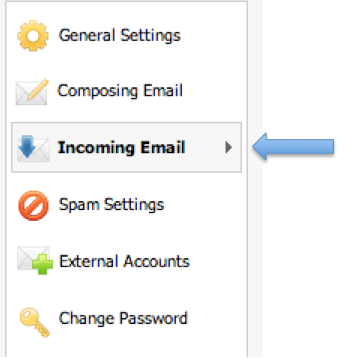
7. Make sure Auto-reply is selected and switch status to ON in the window marked auto reply message, put your auto reply message and clicked save.
8. (***OPTIONAL) You can have the message be on for a certain time using the start on and end on date. This will turn off the auto-reply by a certain time. 9. To turn the auto reply off manually: – Go back to this screen and switch the status to OFF.
